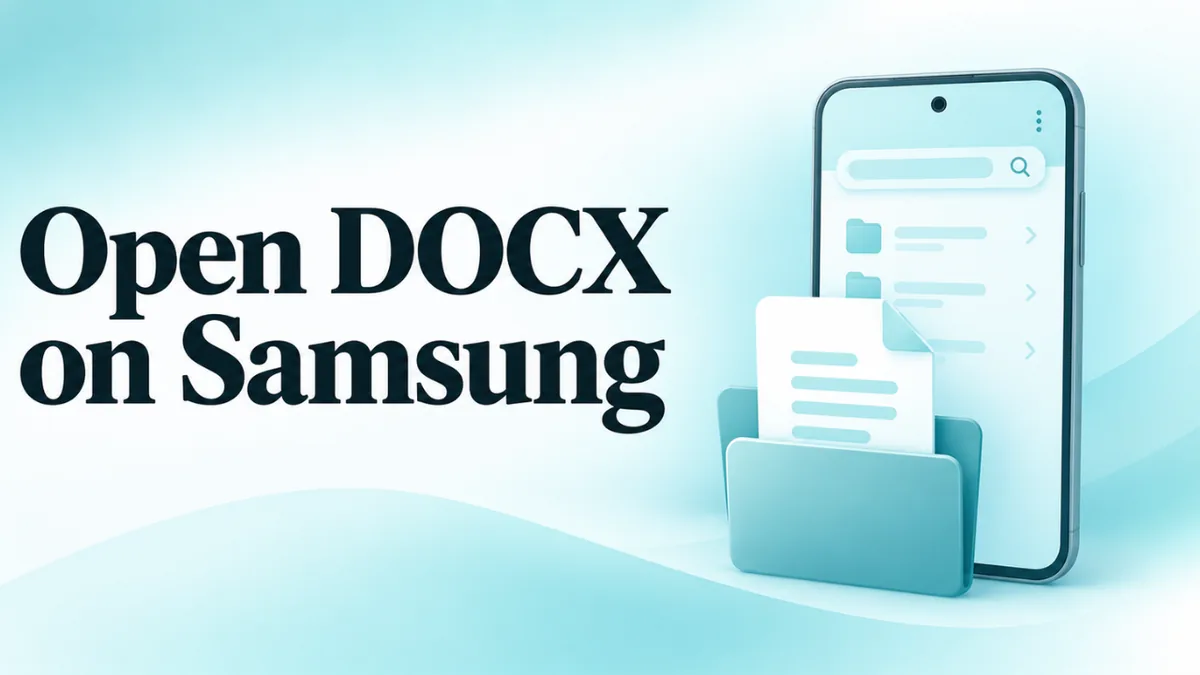
How to Open a DOCX File on a Samsung Phone
Samsung Galaxy phones are great, but many of them don’t come with an app that opens Word files. So you tap a DOCX file from WhatsApp or email and see “Can’t open file” or “No app found”. It happens all the time.
This guide shows you how to open DOCX files on any Samsung phone or tablet, for free. We’ll use apps you already have, like My Files and Samsung Internet, and a few free extras.
Quick answer
- Save the DOCX file to your phone.
- Open Samsung Internet or Chrome and go to opendocxfile.com.
- Tap Choose file and pick the document.
That’s it. No app to install. The steps below explain each part and give you other options.
Why can’t my Samsung open Word files?
A DOCX file needs an app that understands the Word format. Some Galaxy phones come with Microsoft apps already installed, depending on the model and the country. Many don’t. If yours doesn’t have one, Android has nothing to hand the file to, so it shows an error.
The file itself is usually fine. You just need a way to read it.
Step 1: Find the file in My Files
Samsung’s file manager is called My Files. It’s often in a folder called Samsung on your home screen or app drawer.
- Open My Files.
- Tap Documents to see all document files on your phone.
- Or tap Downloads for files you downloaded from the web or email.
Files from WhatsApp are saved in a deeper folder: Internal storage, then Android, media, com.whatsapp, WhatsApp, Media, WhatsApp Documents. For an easier way, see how to open a DOCX file from WhatsApp.
Method 1: Use an online viewer in Samsung Internet
This is the fastest free way, with nothing to install.
- Open Samsung Internet or Chrome.
- Go to opendocxfile.com.
- Tap Choose file.
- In the picker, tap My Files or Files, then find your document in Documents or Downloads.
- Tap the file.
The document opens and fits your screen. Tap Fit if the page is too wide, or use the zoom buttons. You can copy all the text, print it, or save it as a PDF. Your file isn’t uploaded, because the browser opens it on your phone.
Method 2: Install Google Docs
- Open the Play Store or Galaxy Store.
- Search for Google Docs and install it.
- Go back to your file and tap it. Choose Docs when asked.
Google Docs lets you read and edit Word files for free. See how to open a DOCX file in Google Docs.
Method 3: Install Microsoft Word
If your Galaxy doesn’t have it, get Microsoft Word from the Play Store. It shows Word files with their exact layout. Reading is free. Editing may ask you to sign in with a Microsoft account.
Some Galaxy phones include the Microsoft 365 app instead of Word on its own. That app can also open Word documents.
Method 4: Preview it in Google Drive
Most Samsung phones have Google Drive. Open Drive, tap the plus button, choose Upload, and pick your file. Tap it to preview. Remember that this saves a copy in your Drive.
Opening Word files from Samsung Email or Gmail
In the Samsung Email app, tap the attachment to download it, then tap it again to open. If no app can open it, the file is still saved. Find it in My Files under Downloads, then use Method 1.
In Gmail, tap the attachment to preview it. For more, read how to open DOCX attachments in Gmail.
Samsung tablets and DeX
Galaxy Tab tablets work the same way. The bigger screen makes online viewers and Google Docs much nicer to use.
If your phone or tablet supports Samsung DeX, you can connect it to a monitor or use it in a desktop-style mode. In DeX, you can open a browser window with our viewer on one side and another app on the other, just like on a computer.
How to set a default app for Word files on Samsung
When you tap a DOCX file and choose an app, tap Always to make it the default. To change it later:
- Open Settings, then Apps.
- Find the app that currently opens Word files and tap it.
- Tap Set as default, then Clear defaults.
Next time you tap a DOCX file, your phone will ask again. Menu names can differ a little between One UI versions.
How to rename a file on Samsung
If the file has a strange name, like report.docx(1) or letter_docx, it may not open.
- In My Files, press and hold the file.
- Tap More (or the three dots), then Rename.
- Make the name end in exactly .docx.
- Tap Rename to confirm.
Read more in how to fix strange DOCX file names.
Printing from a Samsung phone
Open the document in our viewer and tap Print / PDF. Your phone shows its print screen. If you have a wireless printer on the same Wi-Fi, select it. If not, choose Save as PDF. You may need the free Samsung or Mopria print service installed for some printers. See how to convert DOCX to PDF.
Troubleshooting on Samsung
“Can’t open file” or “No app found”
No Word-capable app is installed. Use Method 1, or install Google Docs or Word.
The file won’t show up in the file picker
Make sure it finished downloading. Check My Files under Downloads or Documents. Some pickers show a Recent list first. Tap the menu to browse all folders.
The file opens but looks wrong
Try another method. The Word app and online viewers usually show layouts most accurately.
It’s an old DOC file
Google Docs and Word open DOC files. See how to open a DOC file.
Still stuck? See why won’t my DOCX file open.
Staying safe
Word files are low risk on Galaxy phones, because phone apps don’t run Word macros. The main risks are fake “document reader” apps and links inside documents from strangers. Stick to well-known apps and don’t tap links you didn’t expect. Read are DOCX files safe to open for more.
Tips for Galaxy users
- Pin the viewer to your home screen. In Samsung Internet, open the page, tap the menu, then Add page to, then Home screen.
- Use the Documents shortcut in My Files to find every Word file on your phone in one place.
- Delete old downloads now and then to free up space.
- Use Secure Folder for private documents you want to keep locked.
Which option is best for you?
| You want to | Best choice | Why |
|---|---|---|
| Read one file quickly | Online viewer | Nothing to install, file stays on your phone |
| Fix a typo or fill in a form | Google Docs | Free editing, easy to use |
| See the exact Word layout | Microsoft Word | Made by the same company as Word |
| Open files often for work | Word or Google Docs | Fast to open, saves your recent files |
| Save phone storage | Online viewer | Uses no storage for an app |
Many people use both: the viewer for quick reading, and Google Docs for the odd edit.
Opening Word files on older Galaxy phones
Older Galaxy phones may run an older version of Android that newer apps don’t support. If Google Docs or Word won’t install, try the online viewer in your browser. It works on most phones from the last several years, as long as the browser is up to date. Update Samsung Internet or Chrome from the Galaxy Store or Play Store first.
If the phone is very old, you may see the page load slowly. Give it a few seconds, especially for large documents with lots of pictures.
Sending a Word file from your Samsung
To send a DOCX file to someone, open My Files, press and hold the file, and tap Share. Pick WhatsApp, email or any app. If the other person only needs to read it, a PDF is often easier for them. Save it as a PDF from the viewer first, then share the PDF.
Frequently asked questions
Do Samsung phones come with Word?
Some models do, depending on the country. Many don’t. Check your apps for Word or Microsoft 365.
Can I open DOCX files on Samsung without installing anything?
Yes. Use an online DOCX viewer in Samsung Internet or Chrome.
Where are downloaded Word files on my Samsung?
In My Files, under Downloads or Documents. WhatsApp files are in the WhatsApp Documents folder.
Can I edit Word files on a Galaxy phone?
Yes, with Google Docs or the Word app.
Are the steps the same on other Android phones?
Mostly. The file manager has a different name. See how to open a DOCX file on Android.