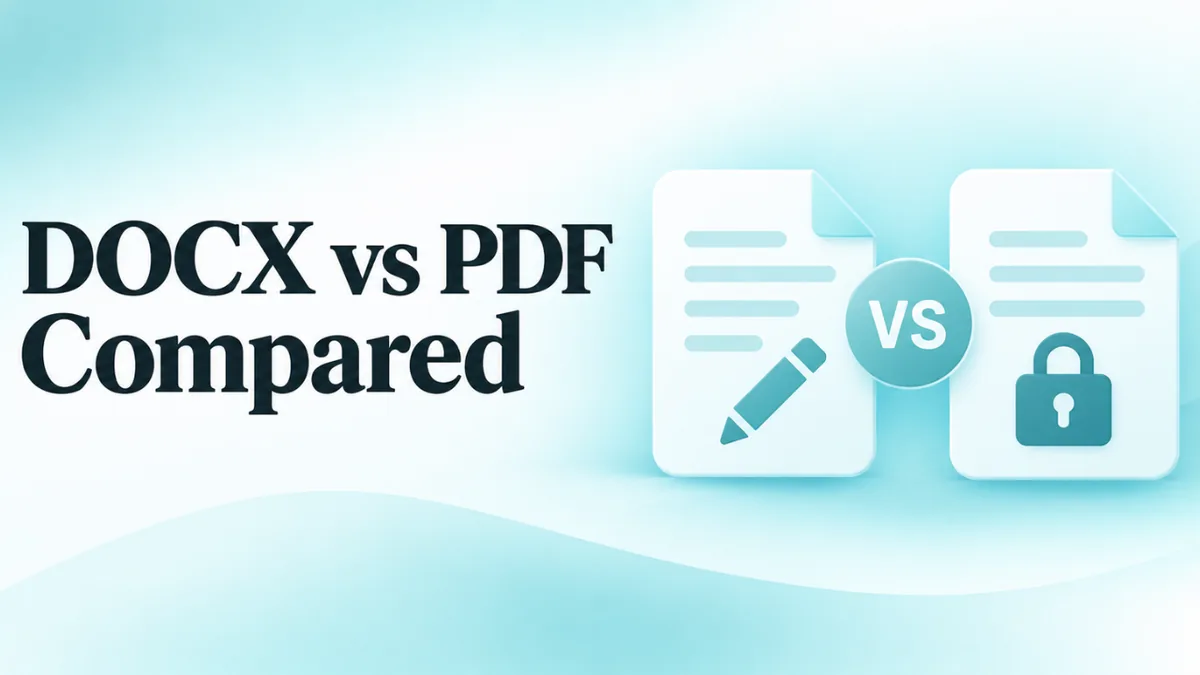
DOCX vs PDF: Which One Should You Use?
You’ve finished a document and you’re about to send it. Should you send the Word file or a PDF? It’s a small choice, but it can matter a lot. The wrong format can mean a messy layout, a rejected job application or a form nobody can fill in.
This guide explains the difference between DOCX and PDF in plain words. You’ll learn what each one is good at, when to use which, and how to switch between them for free.
The short answer
Use DOCX when someone needs to edit the document. Use PDF when someone only needs to read, print or sign it, and you want it to look exactly the same on every device.
What is a DOCX file?
A DOCX file is a Word document. It’s made to be edited. Anyone with Word, Google Docs, LibreOffice or Pages can open it and change the text, the layout and the pictures.
That’s its big strength, and also its weakness. Because the layout is worked out by whichever app opens the file, a DOCX file can look slightly different from one device to another. Fonts may change. Pages may break in different places. For the full story, see what is a DOCX file.
What is a PDF file?
PDF stands for Portable Document Format. A PDF is like a digital printout. The layout is fixed when the file is made. Every page, font and picture is locked in place.
That means a PDF looks the same on a phone, a Mac, a Windows PC or a printer. The downside is that PDFs are hard to edit. You can add notes or fill in form fields, but changing the main text usually needs special software.
DOCX vs PDF side by side
| DOCX | ||
|---|---|---|
| Main purpose | Writing and editing | Sharing and printing |
| Easy to edit | Yes | No |
| Looks the same everywhere | Mostly | Yes |
| Opens on any device without extra apps | Not always | Yes |
| Track changes and comments | Yes, fully | Comments only |
| Fillable forms | Possible but clumsy | Yes, well supported |
| Digital signatures | Limited | Yes |
| File size | Usually small | Small to large |
| Best for printing | Okay | Best |
When to use DOCX
- Working on a document together. Colleagues can edit, comment and track changes.
- Sending a draft for feedback. Editors and teachers often prefer Word files so they can mark them up.
- When a form asks for a Word document. Some job sites and publishers want DOCX.
- When someone will reuse the text. It’s easier to copy text and styles from a Word file.
- Templates. Letters, invoices and reports that you’ll fill in again and again.
When to use PDF
- Final versions. Contracts, reports and letters that shouldn’t change.
- Printing. What you see is exactly what prints.
- Sharing with people who might not have Word. Every device can open PDFs.
- Forms and signatures. PDFs handle fillable fields and e-signatures well.
- Designs with a precise layout. Flyers, menus and brochures.
Which is better for a CV?
This is the question we hear most. The honest answer: it depends on where you’re sending it.
- If the job ad says which format, use that. Always.
- If you’re uploading to a job site, DOCX is often the safer choice. Many hiring systems read Word files more reliably when they pull out your name, dates and skills.
- If you’re emailing a person directly, a PDF keeps your layout neat and looks polished.
Many people keep both versions ready. Before you send either one, open it on a device without Word to check it. Our online DOCX viewer is a quick way to see your Word CV the way many recruiters will see it.
Which is better for school work?
Most schools and universities ask for DOCX or PDF in their upload system. Check the instructions. If the teacher will add comments, they probably want DOCX. If the work is final and must look exactly right, PDF is safer. When in doubt, ask.
Which is better for business documents?
Use DOCX while the document is being written and reviewed. Use PDF for the final version that goes to a client, gets signed, or goes into your records. That way, the working copy stays easy to change, and the final copy can’t be changed by accident.
Which is safer?
Both are generally safe. Plain DOCX files can’t hold macros, which are a common way harmful files cause trouble. PDFs can contain links and, in rare cases, scripts. The real risk with both is files from strangers that try to trick you into clicking a link or enabling something. Be careful with anything you didn’t expect.
How to turn a DOCX into a PDF
It’s free and takes less than a minute. The quickest way that doesn’t upload your file:
- Open the DOCX file in our online viewer.
- Click Print / PDF.
- Choose Save as PDF as the printer, and save.
You can also use Word, Google Docs, LibreOffice or Pages. See our full guide on how to convert DOCX to PDF for free.
How to turn a PDF into a DOCX
This is harder, because PDFs don’t store text in a way that’s made for editing. Your best free options:
- Microsoft Word: open the PDF in Word. It offers to convert it into an editable document.
- Google Docs: upload the PDF to Drive, right-click it and choose Open with, then Google Docs.
Expect some layout changes, especially with columns, tables and unusual fonts. Scanned PDFs, which are just pictures of pages, need text recognition and often come out messy. That’s why it’s smart to always keep your original DOCX file.
Common mistakes
- Sending only a PDF when someone needs to edit. They’ll have to ask you again for the Word file.
- Sending only a DOCX for a final contract. It’s too easy for small changes to slip in.
- Deleting the DOCX after making a PDF. Keep it, so you can make changes later.
- Not checking the PDF. Always open it and look at every page before sending.
- Using odd fonts in a DOCX. If the other person doesn’t have them, the layout changes.
What about DOC and other formats?
DOC is the old Word format from before 2007. It’s best to avoid it now. See DOCX vs DOC for why, and how to convert DOC to DOCX if you have old files.
How to open DOCX and PDF files
Every modern device opens PDFs without extra apps. DOCX files sometimes need a little help, especially on phones. Our guides cover each device:
- Open a DOCX file on Windows 11
- Open a DOCX file on Mac
- Open a DOCX file on iPhone
- Open a DOCX file on Android
How each format handles fonts
Fonts are one of the biggest practical differences, and the one that surprises people most.
A DOCX file usually just names the fonts it uses. When someone opens it, their app looks for those fonts on their device. If a font is missing, the app picks a similar one. That can change line lengths, push words onto the next line and move page breaks. A two-page CV can turn into three pages this way.
A PDF usually carries the fonts inside the file. So it looks the same whether or not the reader has those fonts installed. That’s the main reason PDFs are preferred for final documents.
If you must send a DOCX, stick to common fonts like Arial, Calibri, Times New Roman or Georgia. They’re on almost every computer.
How each format works on phones
Phones open PDFs without any extra app. Word files are a different story. Many Android phones have no Word app by default, and the iPhone’s built-in preview simplifies some layouts. That means your DOCX might look plain, or not open at all, on the other person’s phone.
If you know the reader will be on a phone, a PDF is the kinder choice. If they need to edit on a phone, they’ll need Google Docs, Pages or the Word app, or they can view it in a browser with our online viewer.
Frequently asked questions
Is PDF better than DOCX?
Neither is better overall. PDF is better for final, fixed documents. DOCX is better for anything that needs editing.
Should I send my CV as DOCX or PDF?
Follow the job ad. If it doesn’t say, DOCX is often safer for online job systems, and PDF is good for emailing a person.
Can I edit a PDF like a Word file?
Not easily. Convert it to DOCX in Word or Google Docs first, or ask the sender for the original Word file.
Do PDFs take up more space than DOCX files?
Sometimes. A text-only PDF is small. A PDF with lots of high-quality pictures can be larger than the DOCX it came from.
Can I open DOCX files without Word?
Yes. See how to open a DOCX file without Microsoft Word for seven free ways.